Booking sessions
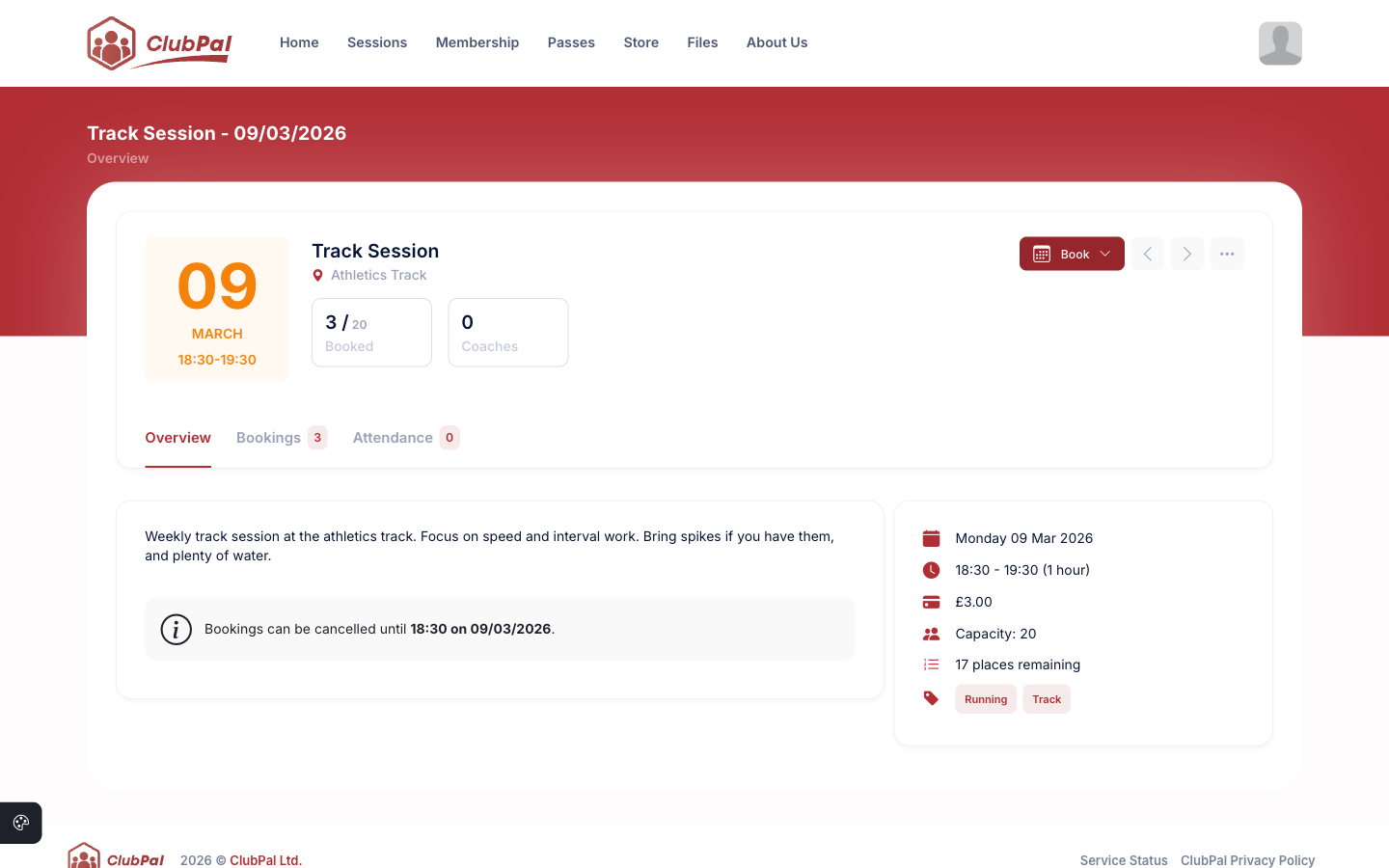
Members can book on to sessions from the session details page. If a session is free and has no booking form fields, bookings are confirmed in a single click. For paid sessions, or sessions with custom form fields, a booking form appears before the booking is confirmed.
The booking form
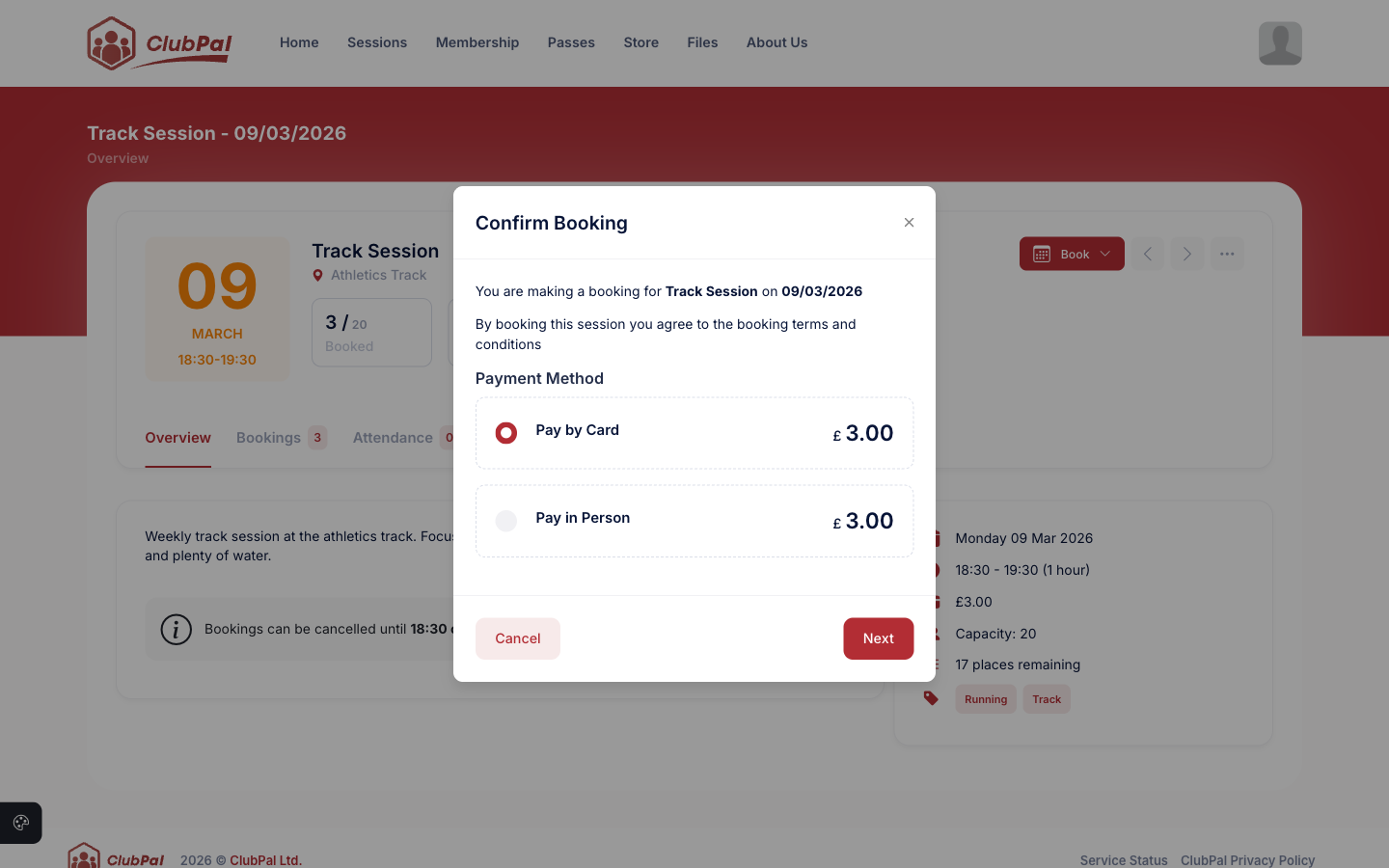
When a member clicks to book, a confirmation dialog appears showing:
- The session name and date
- The booking confirmation message (if configured)
- A warning if the session is in the past (late bookings)
- Any custom form fields configured for the session
- Payment method selection for paid sessions
Custom form fields
If the session has Booking Form Fields configured, these appear in the booking form before the member can confirm. You can collect anything you need, such as lane preference, a vehicle registration, or a specific question. Responses are included in the bookings export.
Payment methods
For sessions with a cost set, members must choose a payment method before confirming. The options shown depend on what has been enabled in the session settings and what the member has available.
| Payment method | Description |
|---|---|
| Payment in person | No online payment is taken. The member confirms the booking and pays at the session (e.g. by cash). A record is created on the platform. |
| When booking | Payment is taken by debit or credit card at the time of booking. Digital wallets such as Apple Pay and Google Pay are supported where compatible. |
| Pass | The booking is deducted from a valid pass the member holds. Only passes that are enabled for the session and still have available uses are shown. |
If the session only has one payment method enabled, it is selected automatically and the member does not need to choose.
For passes that have a usage limit (daily, weekly, or monthly), the remaining availability is shown alongside the pass name so the member can make an informed choice.
Booking restrictions
A member may not be able to book if any of the following apply:
- The booking window has not yet opened or has already closed
- The session has reached capacity (the member will be offered the waiting list instead)
- The session has eligibility rules configured and the member does not meet them
Waiting list
If the session is full, members are offered a place on the waiting list instead of a confirmed booking. Members must pay at the point of joining the waiting list if the session has a cost. See Waiting lists for more details.
Changing your mind
If a member can no longer make a session, they can cancel their booking from the session details page by clicking the Booked button and selecting Cancel Booking. If they'd rather move to a different session than cancel outright, see Swapping bookings.
Whether a booking can still be cancelled, and whether cancelling it issues a refund, depends on two separate settings:
- The Cancellation Window controls how close to the session start time a booking can still be cancelled at all. Once it's passed, the Cancel Booking option no longer appears.
- The Refund Window controls how close to the session start time a cancellation still triggers a refund. A booking cancelled after this window has passed is still cancelled, but no refund is issued.
The refund window is typically set to the same value as the cancellation window or shorter, so clubs can allow a grace period to cancel without necessarily refunding late cancellations. See Creating sessions for how these are configured.
Setting up payments for sessions
To accept card payments you must first connect a payment provider. See the Payments overview for setup instructions. If no payment provider is connected, only Payment in person will be available.
You can configure which payment methods are available per session in the Allowed Payment Methods section of the session settings. See Creating sessions for details.